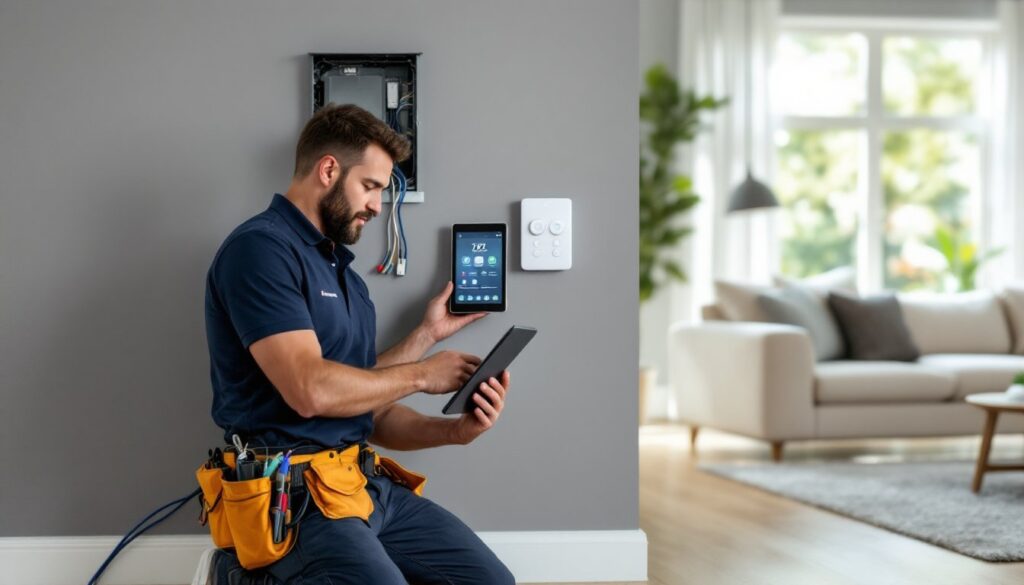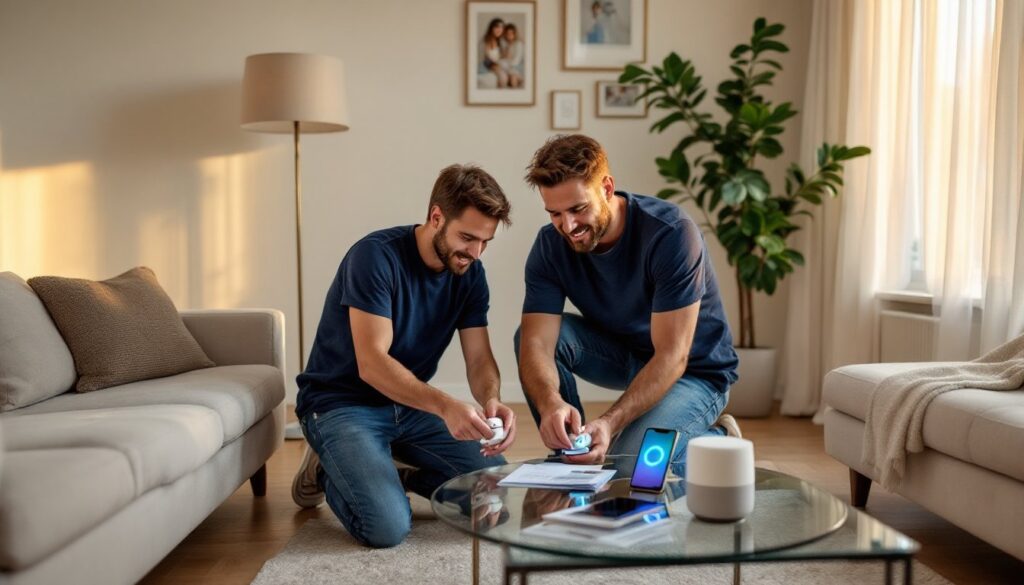

Home automation doesn’t require a contractor, a custom integration specialist, or a five-figure budget. Most smart home devices now use standardized wireless protocols, plug-and-play setup, and smartphone apps that walk users through installation in minutes. A homeowner with basic Wi-Fi troubleshooting skills can install smart thermostats, automated lighting, security cameras, and voice-controlled systems without running new wiring or opening walls. DIY home automation puts the homeowner in control, of both the technology and the budget. This guide covers the essential devices, platform choices, and step-by-step setup processes that turn any house into a responsive, efficient smart home.
Table of Contents
ToggleKey Takeaways
- DIY home automation eliminates $2,000–$10,000 in professional installation costs while giving homeowners full control over device selection, integration, and maintenance.
- Start with simple, plug-and-play devices like smart bulbs, switches, and voice speakers to build familiarity before expanding your smart home system.
- Choose your home automation platform based on priorities: Amazon Alexa for variety and budget, Google Home for Android integration, or Apple HomeKit for privacy and local control.
- Avoid common mistakes like overloading Wi-Fi networks, ignoring firmware updates, mixing incompatible wireless protocols, and skipping device manuals during setup.
- Every automation follows the same pattern—install the device, connect to Wi-Fi, define a trigger and action—making DIY home automation accessible to homeowners with basic technical skills.
Why Choose DIY Home Automation Over Professional Installation
Professional smart home installation can run $2,000 to $10,000 or more, depending on the scope and complexity. Most of that cost goes toward labor, not equipment. DIY installation eliminates those fees entirely, a smart thermostat that costs $180 installed by an HVAC tech might only cost $120 retail, and the homeowner can install it in under 30 minutes with a screwdriver and the included instructions.
DIY also means flexibility. The homeowner controls which devices to add, when to expand, and how systems integrate. There’s no vendor lock-in, no proprietary hub that only works with one brand, and no service contract. If a device fails or a better product launches, the user can swap it out without calling a technician.
Another advantage: troubleshooting becomes simpler when the person who installed the system also maintains it. Most smart home issues stem from Wi-Fi signal strength, app permissions, or firmware updates, problems a homeowner can diagnose and fix faster than scheduling a service call. DIY users learn their systems inside out, which builds confidence and saves money long-term.
Essential Smart Home Devices to Start With
Start small and build incrementally. The most practical entry points combine immediate utility with low complexity and modest cost.
Smart Lighting Systems
Smart bulbs like Philips Hue, LIFX, or Wyze bulbs screw into existing fixtures and connect via Wi-Fi or a dedicated hub (depending on the brand). They allow dimming, color changes, and scheduling through a smartphone app. No rewiring required, just replace the bulb, download the app, and follow the pairing process.
Smart switches replace traditional wall switches and control any bulb in the circuit, smart or dumb. Brands like Lutron Caseta, GE Cync, and Leviton offer models that fit standard single-gang boxes. Installation requires turning off the breaker, removing the old switch, connecting the new switch’s neutral, line, and load wires (and possibly a ground), then securing it back into the box. If the box doesn’t have a neutral wire, common in older homes, choose a switch designed to work without one, or hire an electrician to run a neutral.
Smart lighting is ideal for testing automation rules: “Turn on porch light at sunset,” or “Dim bedroom lights at 10 p.m.” These routines build familiarity with scheduling and triggers.
Voice Assistants and Smart Speakers
Amazon Echo, Google Nest, and Apple HomePod devices serve as command centers. They accept voice commands, stream music, answer questions, and, most importantly, trigger automations across compatible devices. A user can say, “Turn off all the lights,” or “Set the thermostat to 68,” without opening an app.
Choosing a voice assistant often dictates the automation platform (more on that below). Echo devices integrate tightly with Alexa routines, Nest speakers work best with Google Home, and HomePod ties into Apple HomeKit. Most third-party smart devices support all three, but the depth of integration varies.
Place the speaker centrally for best voice pickup. Avoid corners, behind furniture, or inside cabinets, these placements muffle the microphone array and reduce responsiveness.
Choosing the Right Home Automation Platform
The platform is the software layer that ties devices together. Three ecosystems dominate the DIY space: Amazon Alexa, Google Home, and Apple HomeKit.
Amazon Alexa offers the widest device compatibility, affordable Echo hardware, and a mature app with robust routine-building tools. It’s the best choice for users who prioritize variety and budget. Alexa routines can trigger based on time, voice commands, sensor input, or device states (e.g., “When the front door unlocks, turn on the entry light”).
Google Home excels at natural language processing and contextual commands. It integrates seamlessly with Google services (Calendar, Photos, YouTube). The Google Home app is streamlined but less granular than Alexa’s for advanced automations. It’s a solid pick for Android users or anyone already invested in the Google ecosystem.
Apple HomeKit prioritizes privacy and local control. Automations run on the user’s iPhone or a HomePod/Apple TV acting as a hub, not in the cloud. Device compatibility is narrower, products must be certified “Works with HomeKit”, but the ecosystem is secure, fast, and elegant. HomeKit is ideal for iPhone users willing to pay a slight premium for vetted devices.
Many smart home enthusiasts run multiple platforms simultaneously, using each for its strengths. A user might rely on Alexa routines for lighting and locks, but use HomeKit for cameras due to its end-to-end encryption. IFTTT (If This Then That) and Home Assistant are platform-agnostic tools that bridge ecosystems, though they require more technical setup.
Step-by-Step Guide to Setting Up Your First Automation
Here’s a simple project: automate a living room lamp to turn on at sunset and off at 11 p.m.
Materials:
- One smart plug (TP-Link Kasa, Wemo, or similar)
- Existing lamp with incandescent or LED bulb
- Smartphone with the manufacturer’s app installed
- Wi-Fi network (2.4 GHz required for most smart plugs: many don’t support 5 GHz)
Steps:
- Plug in the smart plug near the lamp. The indicator light should blink, signaling setup mode. If it doesn’t, press and hold the button on the plug for 5 seconds to reset.
- Open the app and select “Add Device.” The app will scan for nearby devices. Select the smart plug when it appears.
- Connect the plug to Wi-Fi. The app will prompt for the network name and password. Enter credentials and wait for confirmation, usually a solid LED on the plug.
- Plug the lamp into the smart plug. Turn the lamp’s physical switch to the “on” position so the smart plug controls power.
- Create a schedule. In the app, navigate to Schedules or Automations. Set a “Turn On” action at sunset (most apps detect location and calculate sunset time automatically). Set a “Turn Off” action at 11 p.m.
- Test it. Manually trigger the schedule or toggle the plug on and off in the app to confirm responsiveness.
Once this works, expand: add a motion sensor to trigger the lamp when someone enters the room, or link it to a voice assistant for manual control. Every automation follows this same pattern, install device, connect to network, define trigger and action.
Common DIY Home Automation Mistakes to Avoid
Overloading the Wi-Fi network. Every smart device consumes bandwidth and an IP address. A router with 20+ connected devices may experience slowdowns or drop connections. Upgrade to a mesh Wi-Fi system (like Eero, Google Wifi, or Ubiquiti) if coverage or capacity becomes an issue. Alternatively, segment smart home devices onto a separate 2.4 GHz network to reduce congestion on the main band.
Ignoring firmware updates. Manufacturers release updates to patch security vulnerabilities and improve compatibility. Enable automatic updates in device apps, or set a monthly reminder to check manually. An outdated device can become a security risk or stop working with platform updates.
Mixing incompatible protocols. Wi-Fi, Zigbee, Z-Wave, Thread, and Bluetooth are all wireless standards used in smart home devices, and they don’t talk to each other directly. A Zigbee bulb won’t pair with a Z-Wave hub. Before buying, confirm the device uses a protocol supported by the chosen platform. Most DIYers stick with Wi-Fi devices for simplicity, though Zigbee and Z-Wave offer better range and lower power consumption if the user invests in a compatible hub.
Skipping the manual. Setup processes vary widely. Some devices require Bluetooth pairing before Wi-Fi connection. Others need a specific router setting (like disabling AP isolation). Read the quick-start guide and check the FAQ on the manufacturer’s website before troubleshooting blindly.
Not planning for power outages. Most smart plugs, bulbs, and switches default to “off” or “last state” after power is restored. If a power outage turns off all smart bulbs, they won’t respond to automations until manually switched on. Set devices to return to “on” state in their settings, or use smart switches instead of bulbs to maintain control regardless of bulb state.